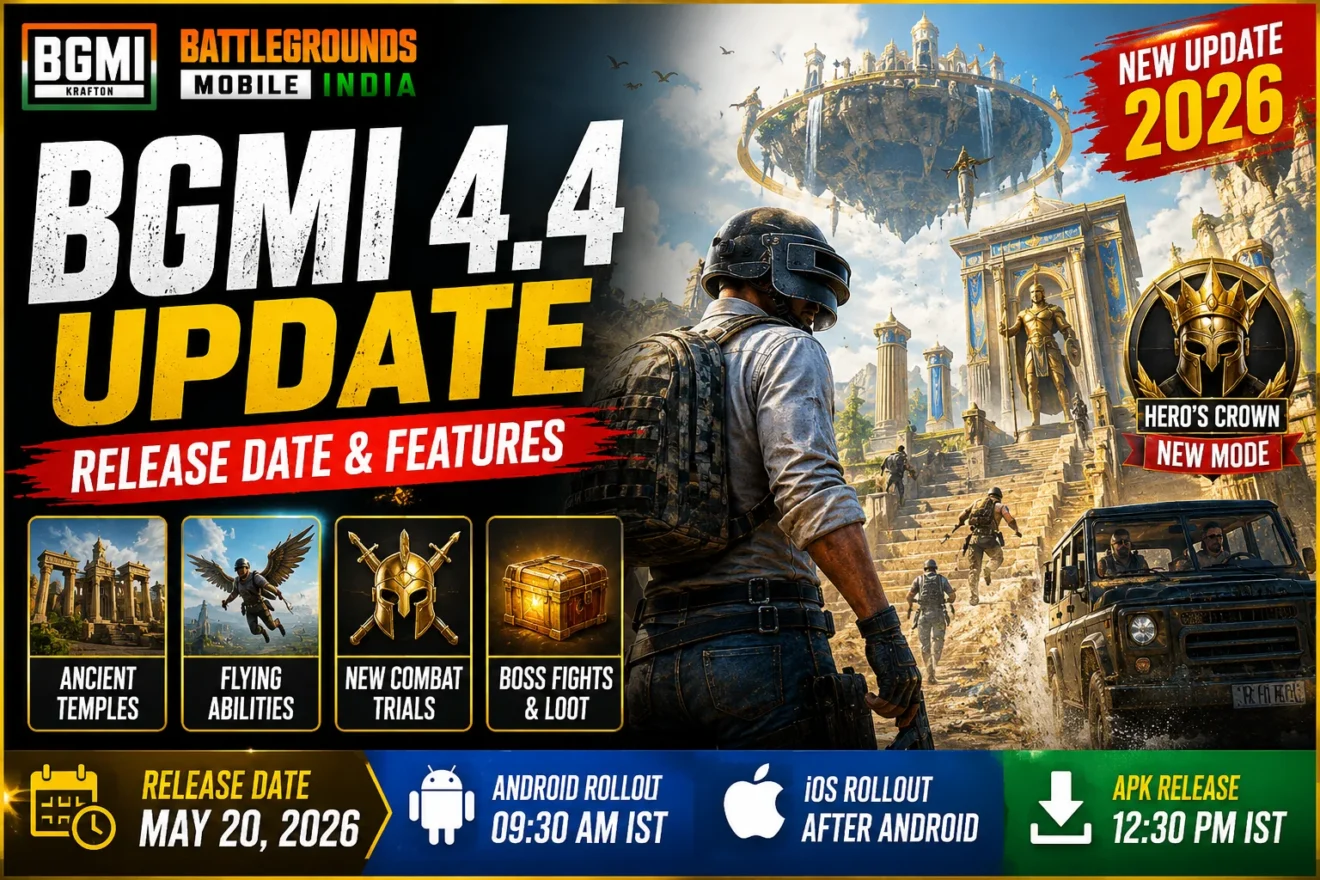
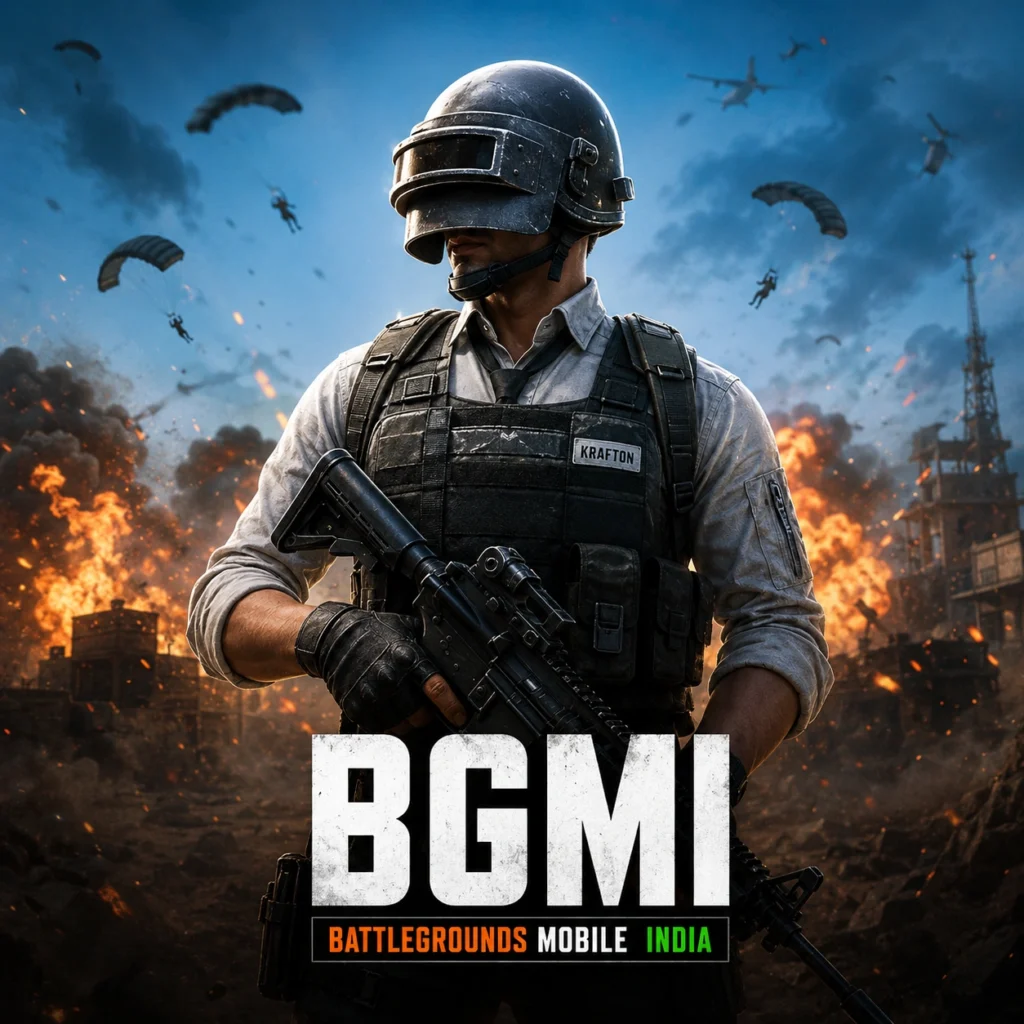
Downloading BGMI on Android in 2026 takes less than 5 minutes if you follow the right steps. The simplest method is through the Google Play Store, and the current version is 4.4 released on May 20, 2026 by KRAFTON. This guide covers both the Play Store method and the official APK method, with exact steps for each.
BGMI (Battlegrounds Mobile India) is the biggest battle royale game in India right now. Built exclusively for Indian players by KRAFTON, it features Indian-specific content, regional servers, and squad gameplay across maps like Erangel, Miramar, and Livik. The game is free to download and the version 4.4 update added Hero’s Crown mode, new map redesigns, and fresh combat mechanics.
We have downloaded and tested BGMI across multiple devices including the ROG 5 and iPhone 14 Pro, and also verified performance on lower-spec Android phones. Everything in this guide is based on real hands-on experience.
📋 Quick Navigation
- BGMI Minimum Requirements for Android
- Method 1 — Download from Google Play Store
- Method 2 — Download via Official APK
- How to Update BGMI to Latest Version
- BGMI Performance on Low-End Phones
- Troubleshooting Common Issues
- Frequently Asked Questions
📱 BGMI Minimum Requirements for Android 2026
Before downloading BGMI, check that your phone meets these requirements. Installing on an unsupported device causes crashes, failed downloads, and wasted data.
| Requirement | Minimum | Recommended |
| Android Version | Android 5.1 | Android 8.0 or above |
| RAM | 2GB | 4GB or above |
| Storage Space | 4GB free | 6GB free |
| Internet | Required for download | Stable WiFi preferred |
| File Size | Around 900MB base | Full install around 2GB |
A quick note on 2GB RAM phones: BGMI technically runs on 2GB RAM but the experience is noticeably choppy at times. In our own early testing on a 2GB RAM device, the game ran but frame drops during intense firefights were common. If your phone has 3GB RAM or above, gameplay is significantly smoother. 4GB RAM and above is where BGMI truly performs as intended.
📥 Method 1 — Download BGMI from Google Play Store
This is the safest and simplest way to download BGMI. The Play Store method gives you the official verified version directly from KRAFTON with automatic updates.
🔢 Step by Step — Play Store Download
Step 1. Open the Google Play Store on your Android phone.
Step 2. Tap the search bar at the top and type “Battlegrounds Mobile India”.
Step 3. Tap the official BGMI listing. The developer name shown must say KRAFTON, Inc. Do not download from any other listing.
Step 4. Tap the green Install button. The app will begin downloading. The base APK is around 90MB but the game will download additional resource packs after the first launch.
Step 5. Once the download finishes, tap Open. The game will launch and ask for storage and microphone permissions. Allow both.
Step 6. BGMI will now download the remaining game resources inside the app. This takes between 5 to 15 minutes depending on your internet speed. Make sure you are on WiFi for this step.
Step 7. Once all resources are downloaded, log in using your Facebook, Twitter, or mobile number. Your account is now created and you are ready to play.
Total estimated time: 10 to 20 minutes on a standard WiFi connection.
📦 Method 2 — Download BGMI via Official APK
Use the APK method only if the Play Store method is not working on your device, or if you need to install the latest update before it rolls out to your Play Store account. Always download the APK file from the official BGMI website only. Never use third-party APK sites as modified APK files can contain malware and will result in a permanent account ban from KRAFTON.
🔢 Step by Step — APK Install
Step 1. Open your phone’s Settings. Go to Security or Privacy settings. Find the option called “Install unknown apps” or “Allow installation from unknown sources” and enable it. On Android 10 and above you may need to grant this permission specifically to your browser app.
Step 2. Open your browser and go to the official BGMI website. Download both files: the APK file (around 90MB) and the OBB data file (around 800MB). Wait for both downloads to complete fully before proceeding.
Step 3. Open your File Manager app. Go to your Downloads folder. Tap the BGMI APK file to begin installation. Tap Install when prompted.
Step 4. Do not tap Open after installation completes. You need to place the OBB file first.
Step 5. Go back to your File Manager. Find the downloaded OBB file. Copy it. Navigate to Internal Storage, then Android, then obb. If a folder called com.pubg.imobile does not exist, create it with exactly that name. Paste the OBB file inside that folder.
Step 6. Now tap the BGMI icon on your home screen to open the game. It will verify the files and launch. Log in and you are ready to play.
Common error during APK install: If you see “Resources could not be found” it means the OBB file is either missing or placed in the wrong folder. Go back to Step 5 and check the folder path carefully.
🔄 How to Update BGMI to Version 4.4
If you already have BGMI installed and need to update to version 4.4, follow these steps.
Step 1. Open the Google Play Store on your phone.
Step 2. Tap your profile icon in the top right corner.
Step 3. Tap Manage apps and device from the menu.
Step 4. Find Battlegrounds Mobile India in the list and tap Update.
Step 5. The update will download and install automatically. Make sure you have at least 2GB of free storage before updating.
The version 4.4 update brought the Hero’s Crown themed mode, redesigned areas on classic maps including Erangel, new weapons, new vehicles, and special trial challenges. It is worth updating immediately to access all current events and the Royale Pass rewards for this season.
⚡ BGMI Performance on Low-End Android Phones
BGMI has been tested on the ROG 5 at maximum graphics with 90fps and the performance is exceptional. Ultra HD graphics, maximum frame rate, and zero lag even during 64-player final circles. The ROG 5 is built for exactly this kind of gaming and BGMI uses every bit of that hardware.
On a mid-range phone with 4GB RAM, BGMI runs well at medium to high settings. Frame rates stay consistent through most of the match with minor dips during intense close-range fights. This is the sweet spot for most Indian gamers in 2026.
On a 2GB RAM phone, the game loads and runs but you will notice lag in areas with many players, slower loading between maps, and occasional game crashes during longer sessions. From personal experience testing BGMI on a 2GB RAM device during its early launch days, the game was playable but not enjoyable at that spec level. If you are on 2GB RAM, set graphics to Smooth and frame rate to Low for the most stable experience.
💡 Recommended Settings by Device
| RAM | Graphics | Frame Rate | Expected Experience |
| 2GB RAM | Smooth | Low | Playable with occasional lag |
| 3GB RAM | Balanced | Medium | Good for casual play |
| 4GB RAM | HD | High | Smooth and competitive |
| 6GB RAM and above | Ultra HD | Ultra | Best possible performance |
| ROG 5 or flagship | Ultra HD | 90fps | Maximum performance |
🛠 Troubleshooting Common BGMI Download Issues
❗ BGMI Not Showing in Play Store
BGMI is available only for players in India. If you are using a Google account registered outside India, the game will not appear in your Play Store search. Switch to an India-registered Google account or use the official APK method described above.
❗ Download Stuck or Failed
This usually happens due to low storage space or an unstable internet connection. Free up at least 4GB of storage space before downloading. Switch to WiFi if you are on mobile data. If the download fails mid-way, cancel it, restart your phone, and try again from the Play Store.
❗ Game Crashes After Launch
Crashes after launch are most commonly caused by insufficient RAM or an outdated Android version. Check that your phone meets the minimum requirements listed above. If your device qualifies, try clearing the BGMI app cache from Settings, then relaunch the game.
❗ Resources Could Not Be Found Error
This error appears only during APK installs when the OBB file is missing or placed in the wrong folder. Go to Internal Storage, Android, obb, and confirm the folder is named exactly com.pubg.imobile with the OBB file inside it. Any typo in the folder name will trigger this error.